
EMAIL SUPPORT
dclessons@dclessons.comLOCATION
USLAB Implement Branch and Regional Internet Breakouts
Task :
- Use a centralized data policy to implement local internet breakout for specific traffic in VPN10.
- Configure the policy to send only DNS, HTTP, and HTTPS traffic towards the internet through VPN 0.
- Configure a WAN Edge router as an internet exit point, enable Network Address Translation (NAT) on one or more internet-facing interfaces in VPN 0.
- Configure a centralized data policy on a Cisco vSmart controller. The centralized data policy splits the traffic within the VPN, directing some traffic towards remote sites within the VPN (within the overlay network) and other traffic to the internet or destinations outside the overlay network.
Topology
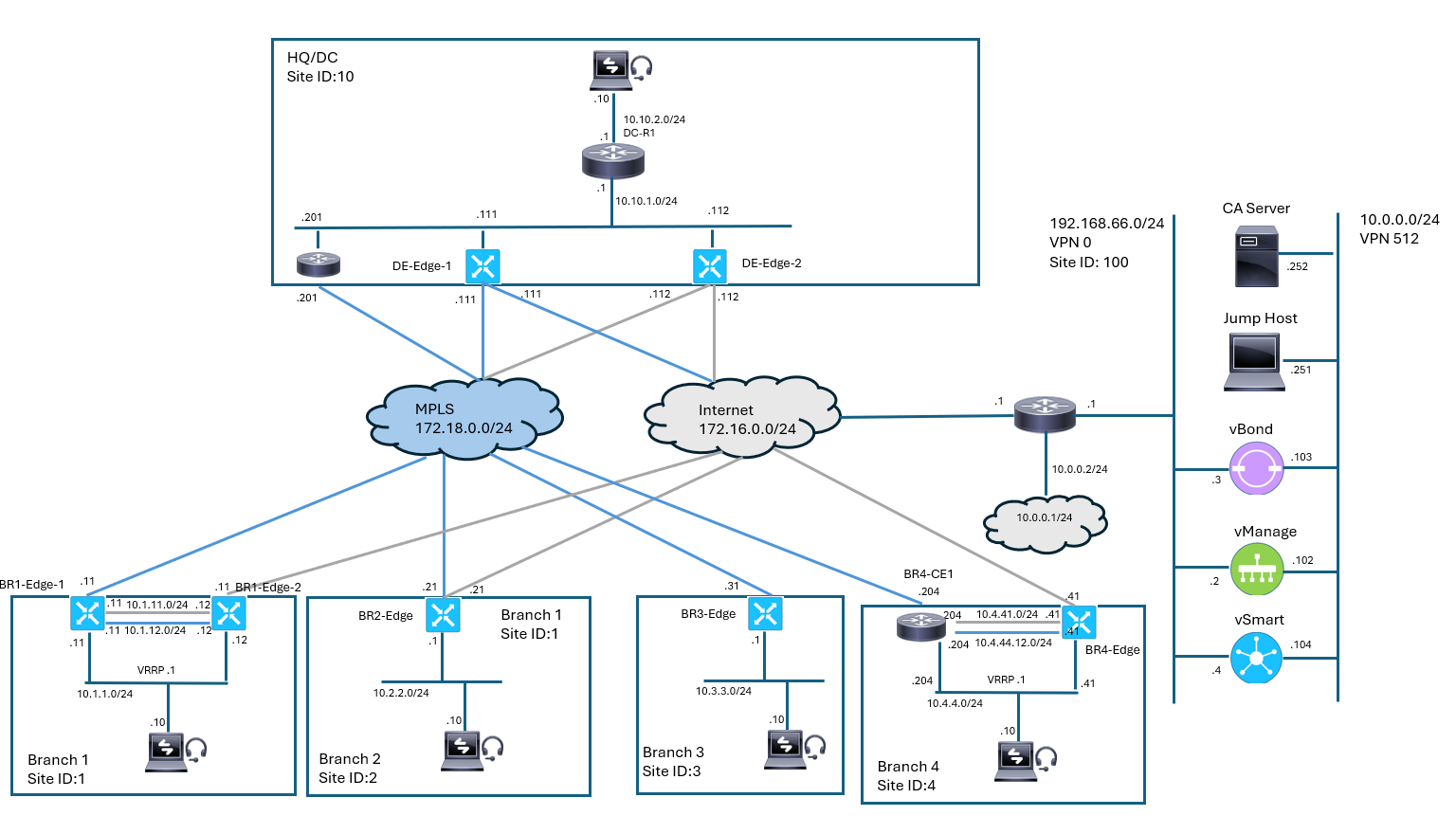 Solution:
Implement Local Breakout
In the previous lab, when the TLOC extension was configured, NAT was enabled on the internet interface on the BR1-Edge2 router. Review the BR1-Edge2 running configuration.
A DIA policy will use all internet interfaces with NAT enabled for internet-bound traffic. If there is more than one interface, the traffic is load balanced.
Now you will create a DIA centralized data policy to steer specific traffic to the internet. In Cisco vManage, navigate to Configuration > Policies.
From the Cisco vManage main menu, navigate to Configuration > Policies.
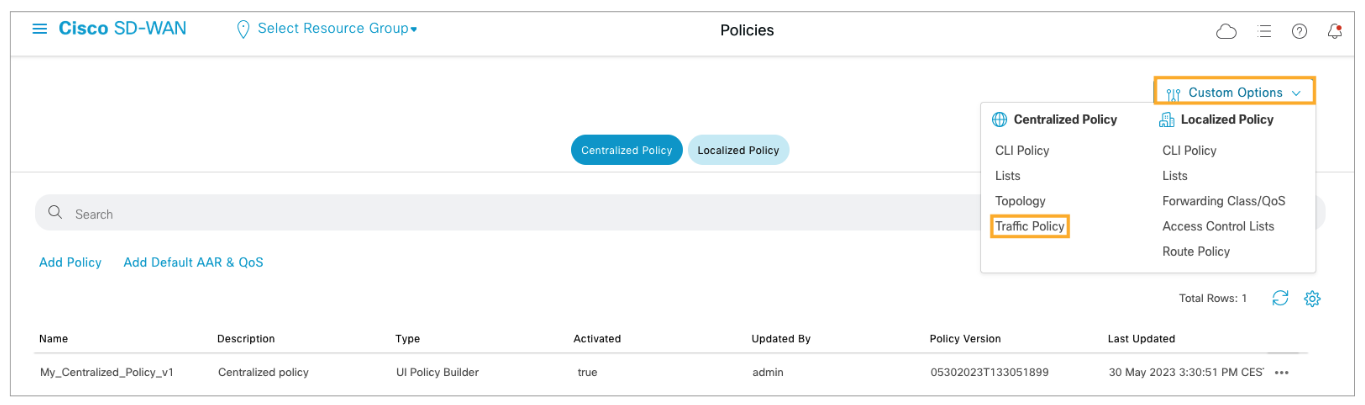
Open the Custom Options menu and choose Traffic Policy.
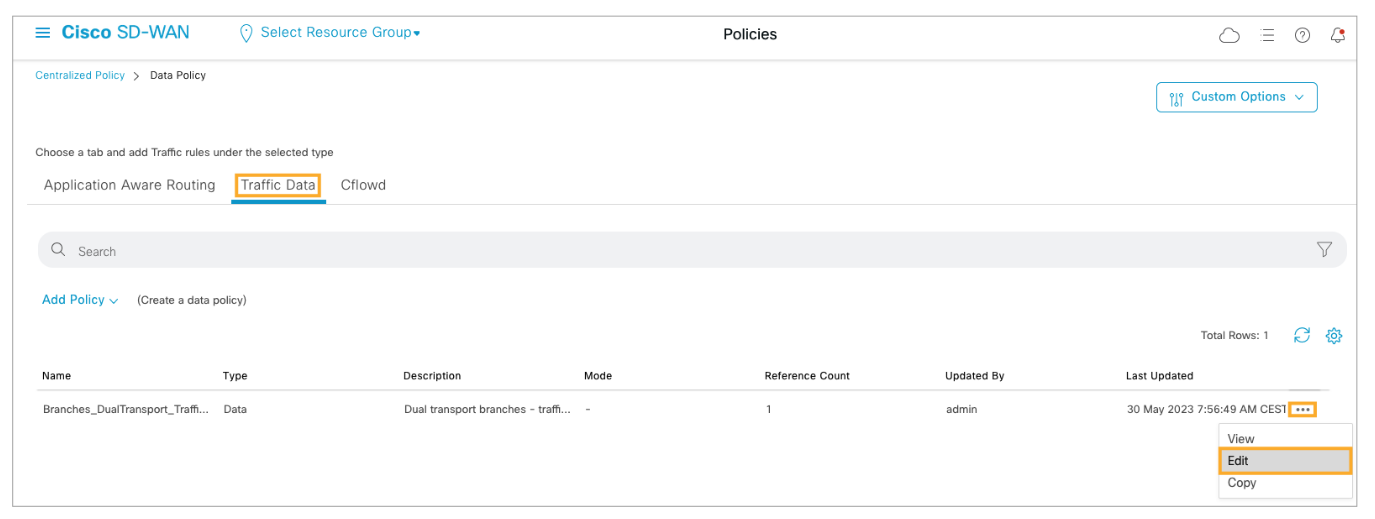
Open the Traffic Data tab, and from the more options (…) menu for the traffic policy, choose Edit
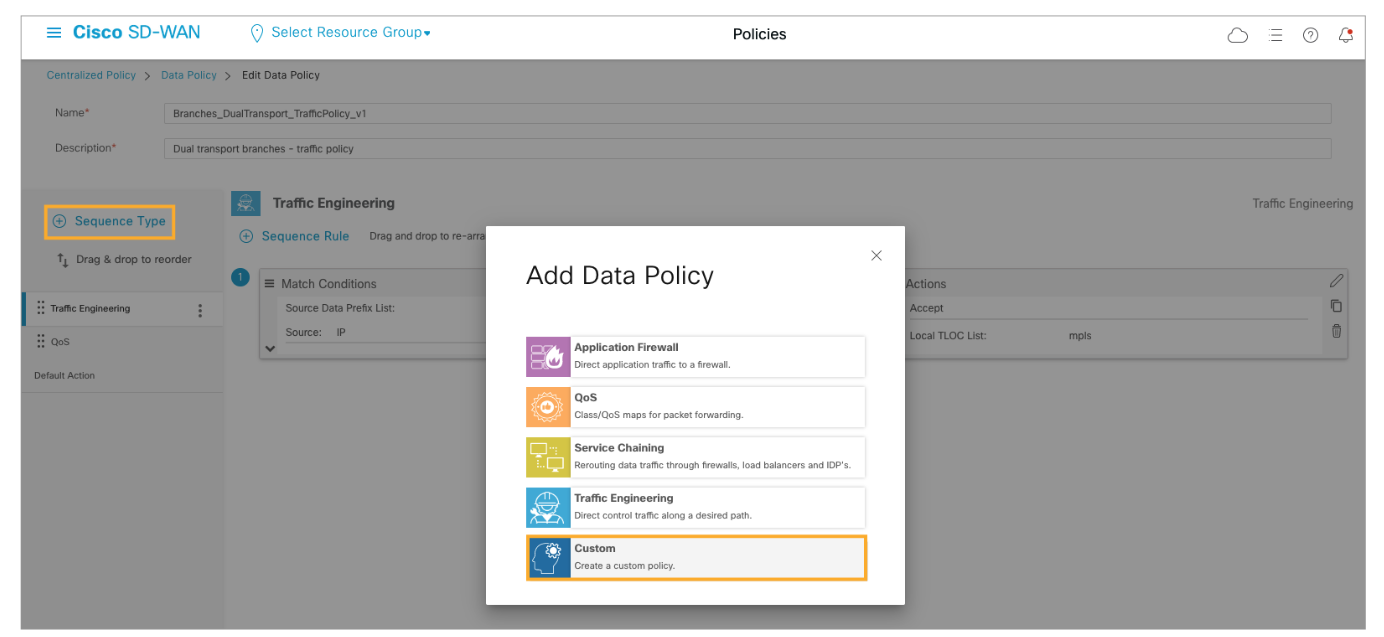
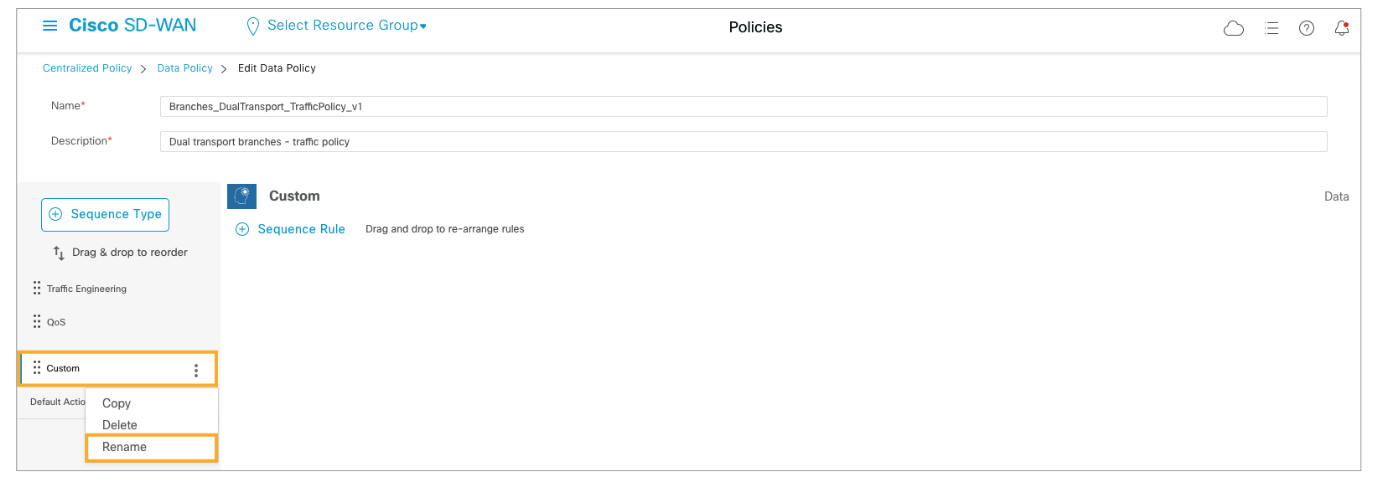
Add a new Custom sequence type to the traffic policy. Click (+) Sequence Type to add a new type, and from the list of options, choose Custom.
From the more options menu for the Custom policy sequence, choose Rename. Name the policy sequence DIA.
Add a sequence rule to the DIA policy sequence. Configure the match statements to match DNS, HTTP, and HTTPS protocols based on the destination ports. Configure the Action to NAT the traffic in VPN 0.
Click + Sequence Rule to add a new rule to the policy sequence. Configure the new sequence rule as follows:
-
On the Match tab, click Destination Port, and add ports 53, 80, and 443 separated by a space.
-
Click the Action tab and set the action to Accept. Add the NAT VPN action and enable the Fallback option.
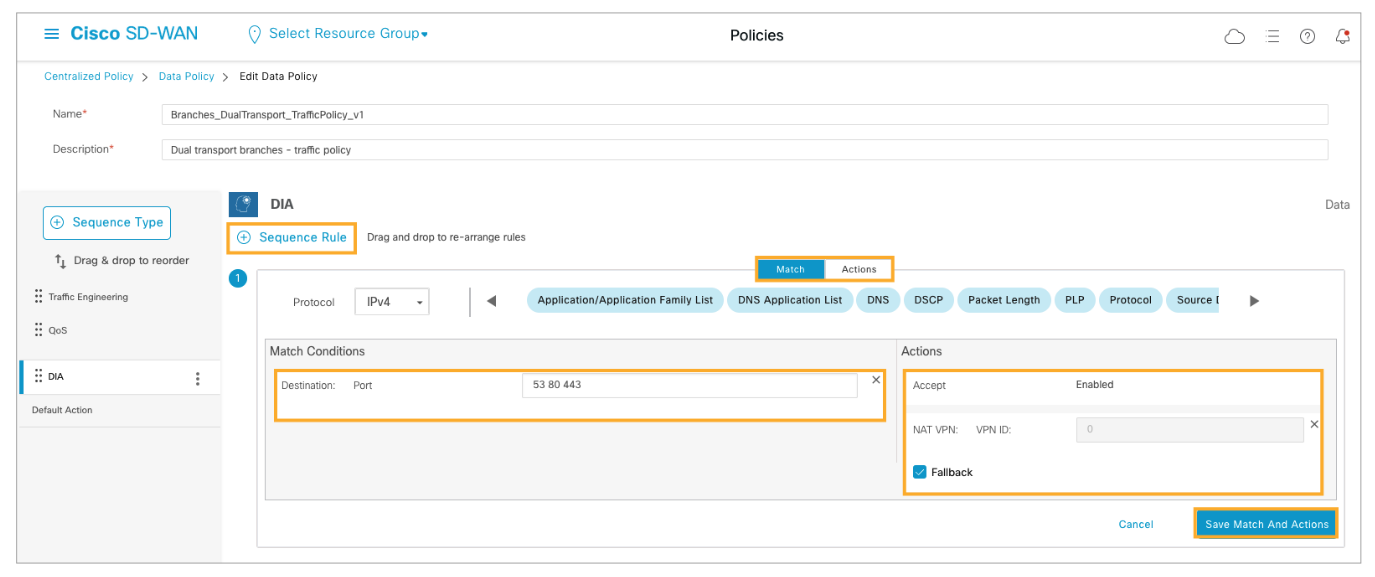
The defined policy enables local internet breakout. The policy matches traffic based on destination ports 53, 80 and 443 (DNS, HTTP, and HTTPS). The policy then applies a NAT VPN action, which instructs the WAN Edge router to forward the traffic from the service side VPN into the transport VPN 0, to an interface with NAT enabled, towards the internet. The Fallback option instructs the router to fall back to destination-based routing if internet access is not functional (that is if the internet interface with NAT enabled goes down) and route the traffic to the regional internet gateway.
Click Save Data Policy to save your changes, and click Activate to start the deployment workflow.
Click Next to skip the first step as you will not modify any variable values.
Choose one of the Cisco vSmart controllers from the left pane list and choose Config Diff to view the configuration changes.
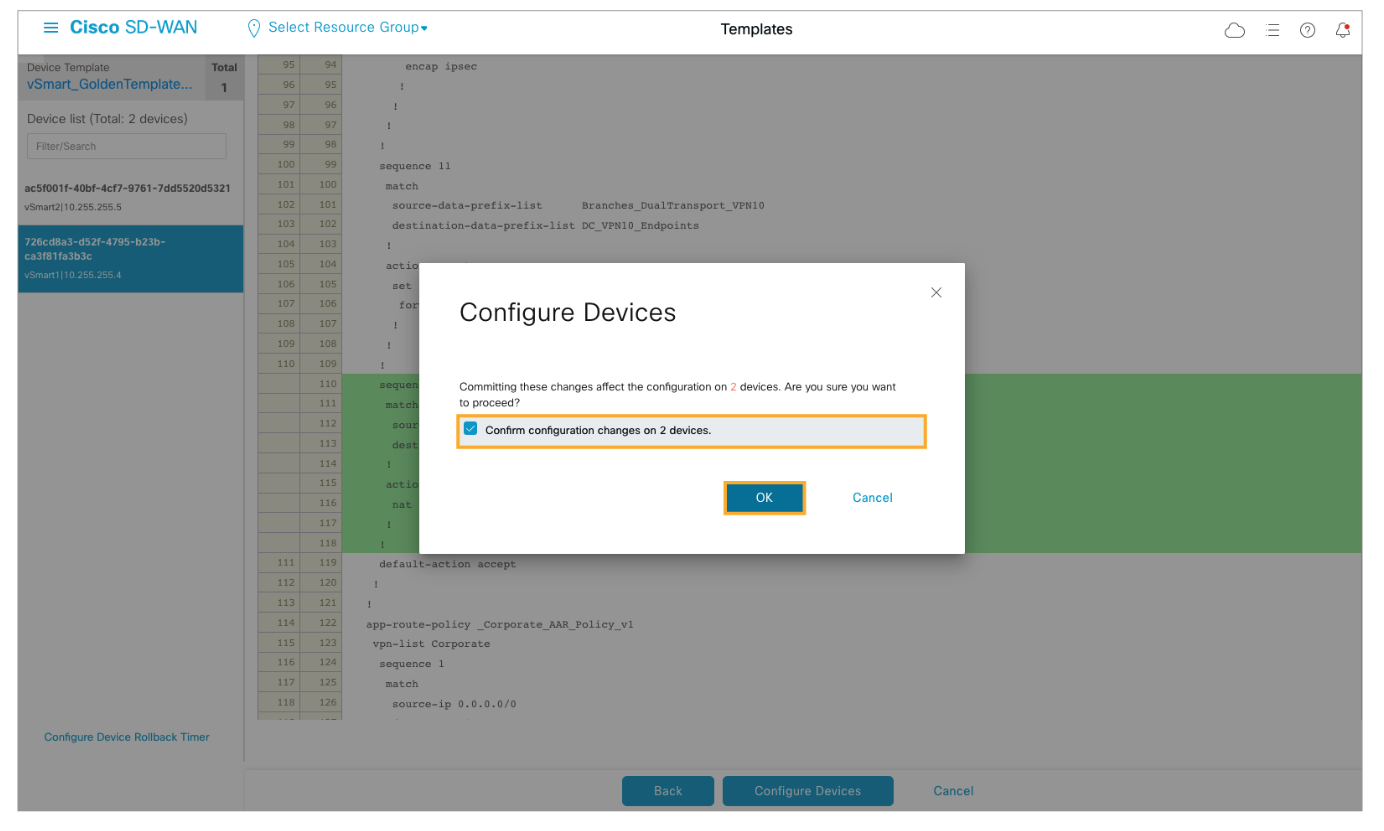
Scroll down and review the policy changes. Click Configure Devices when finished reviewing.
Confirm by checking the checkbox and click OK to deploy the configuration.
From BR1-PC, open a web browser and try to open the www.cisco.com web page. Connect to the BR1-PC from the lab portal and open a web browser. In the browser address bar enter www.cisco.com.
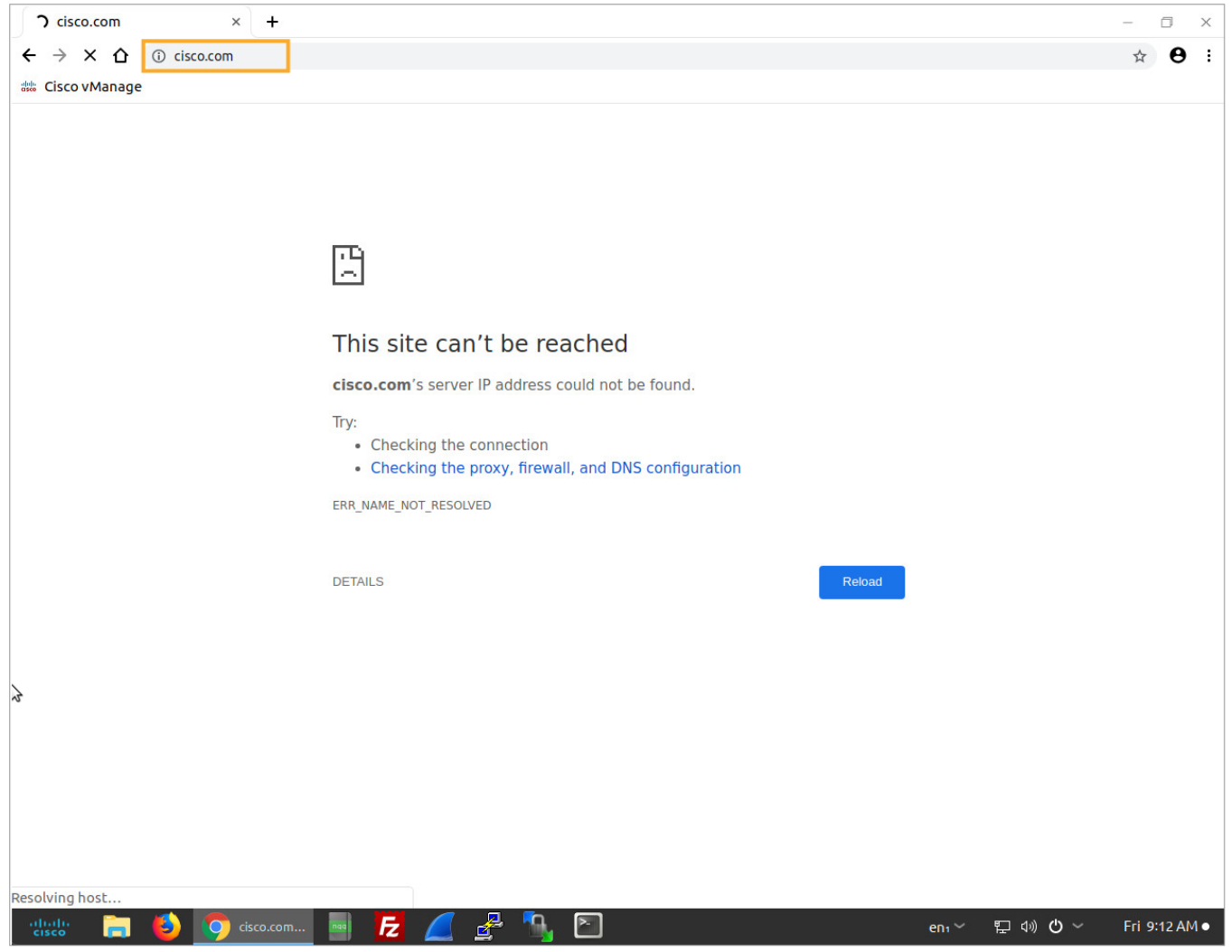
The connection to the website will not work. This is because the BR1-PC is configured to use 10.1.1.1 as the default gateway.
Branch 1 has two WAN Edge routers connected to VPN 10 (10.1.1.11 and 10.1.1.12). You will need to configure VRRP with 10.1.1.1 to provide the first hop layer 3 services at the site.
In Cisco vManage, navigate to the configuration groups and edit the Branch 1 configuration group. From the Cisco vManage main menu, navigate to Configuration > Templates.
From the Actions menu for the Branch 1 template, choose Edit.
Expand the Service Profile, and from the Actions menu for the VPN_10_Interface, choose Edit Feature.
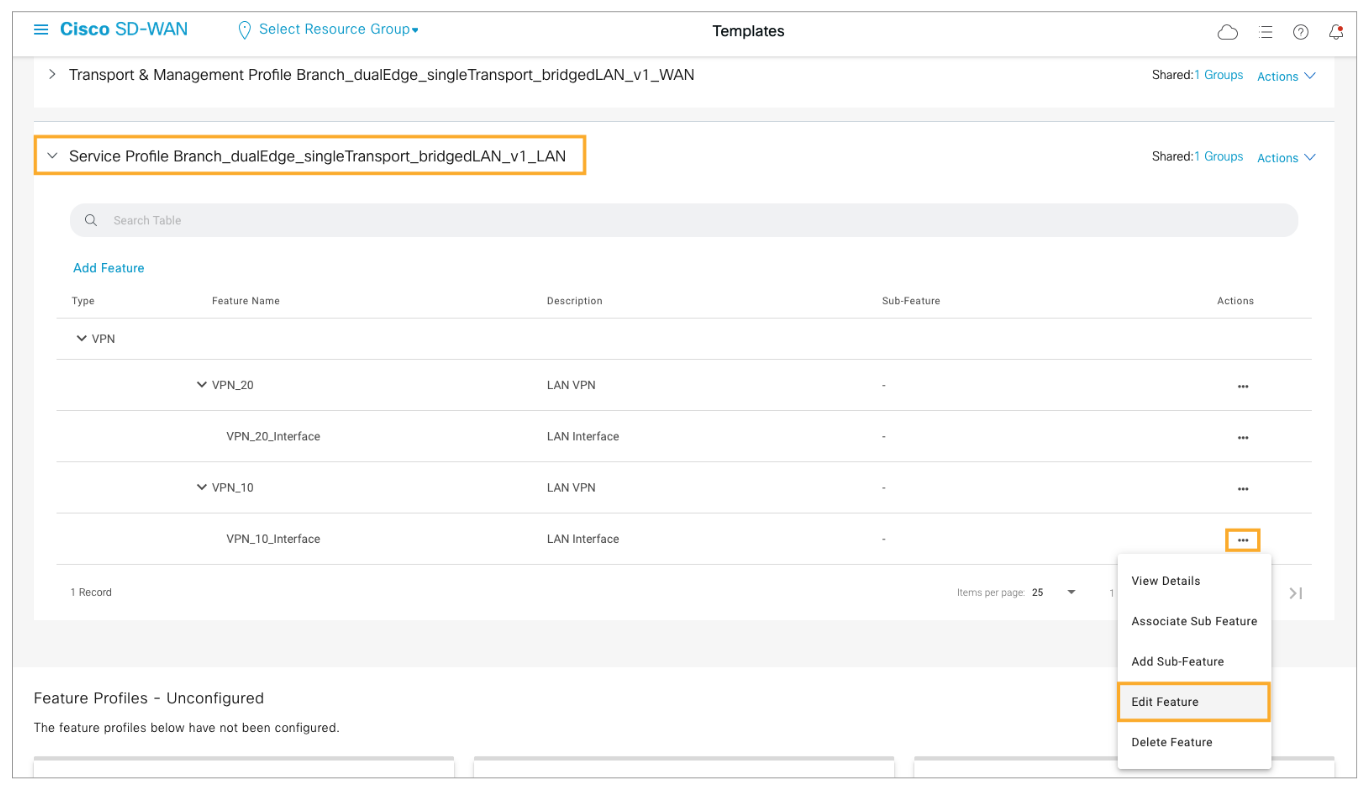
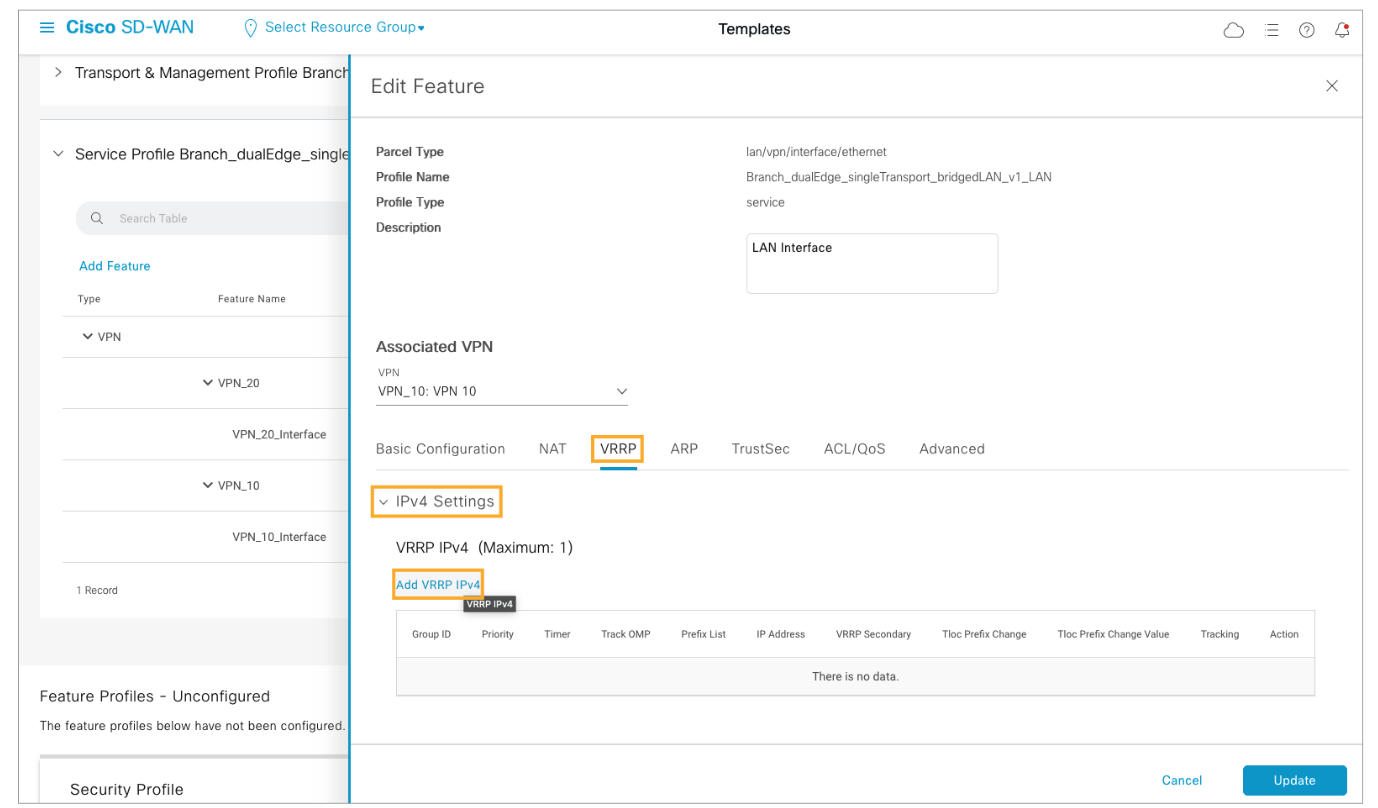
Configure VRRP for the interface with 10.1.1.1 as the virtual IP. Configure the VRRP priority as a device specific variable.
Open the VRRP tab under the interface feature. Expand the IPv4 Settings section and click Add VRRP IPv4.
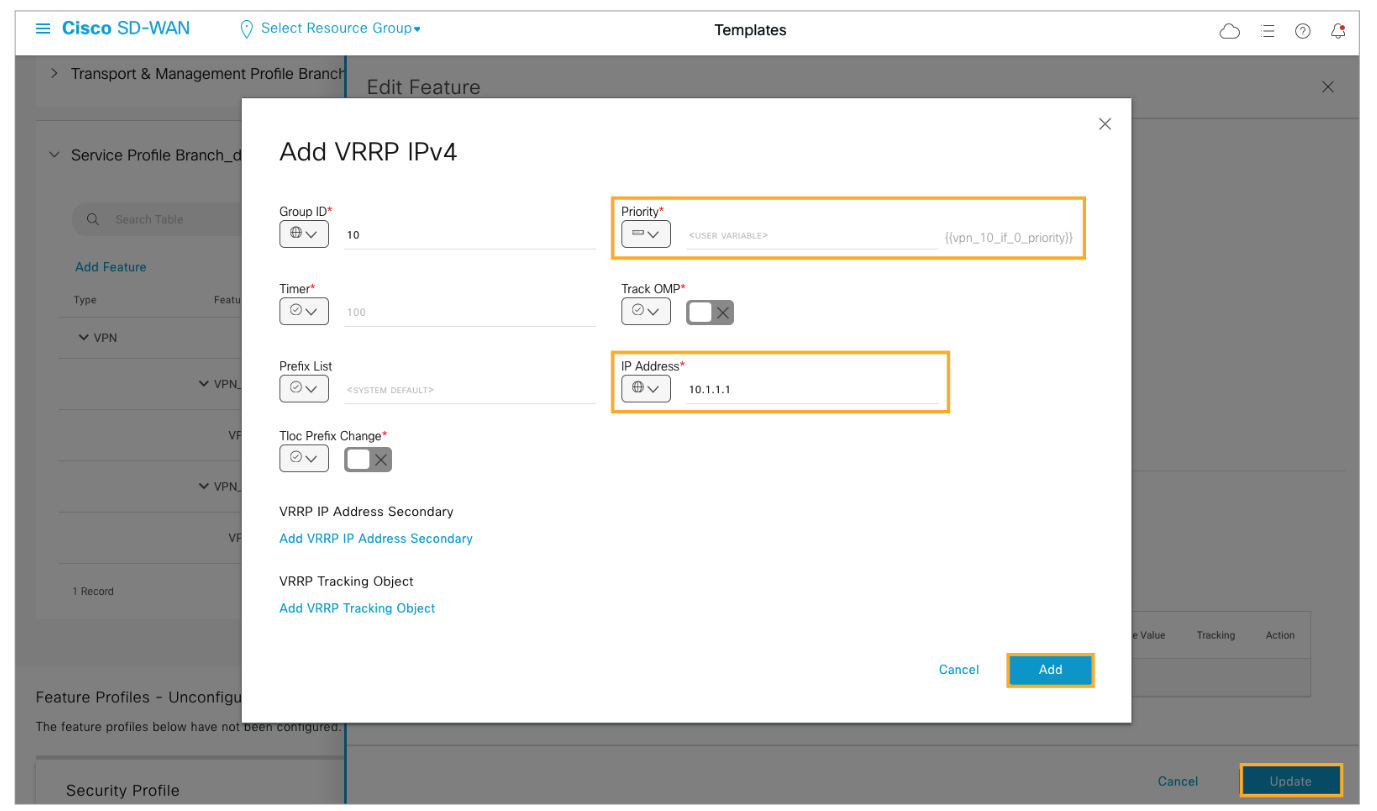
Configure the Priority as a device-specific variable and configure the IP Address as 10.1.1.1. Specify a value of 10 for the Group ID. Click Add and Update to save your changes.
Inside the Branch 1 configuration group open the Associated Devices tab. Select both WAN Edge routers and click Deploy. Click Next twice to get to the Add and Review Device Configuration window.
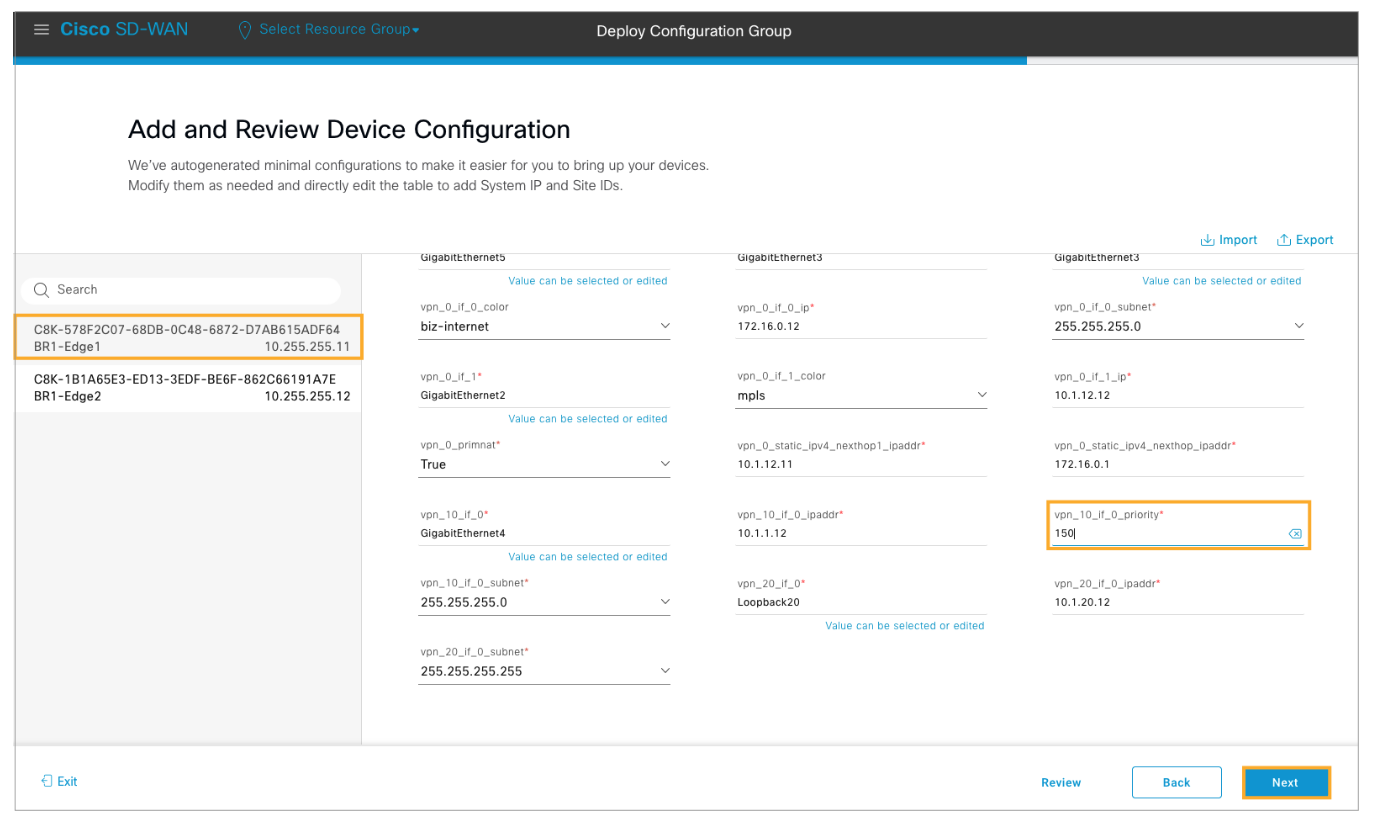
Choose BR1-Edge1 from the left pane list and configure VRRP priority as 100.
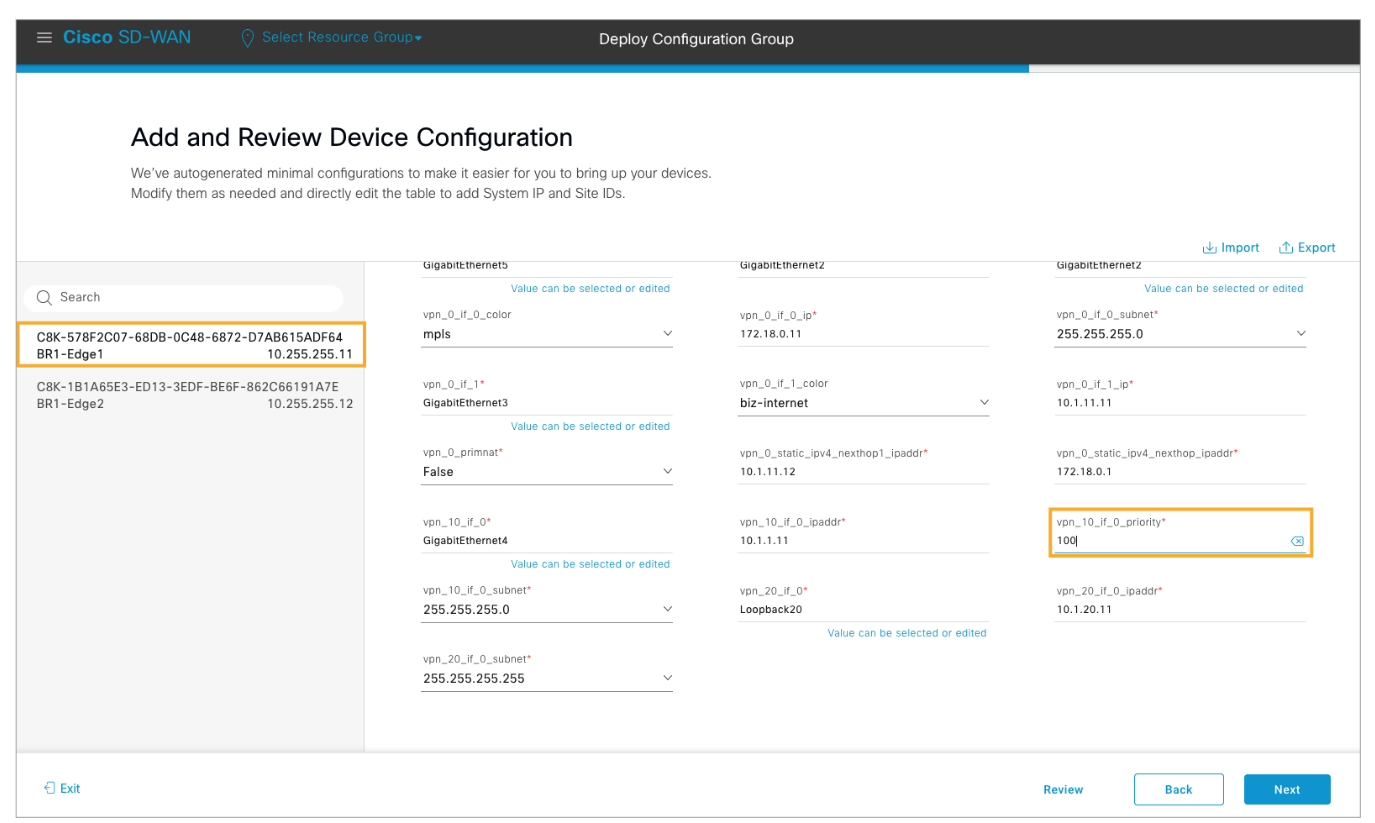
Choose BR1-Edge2 router from the list and configure the VRRP priority as 150. Click Next to proceed.
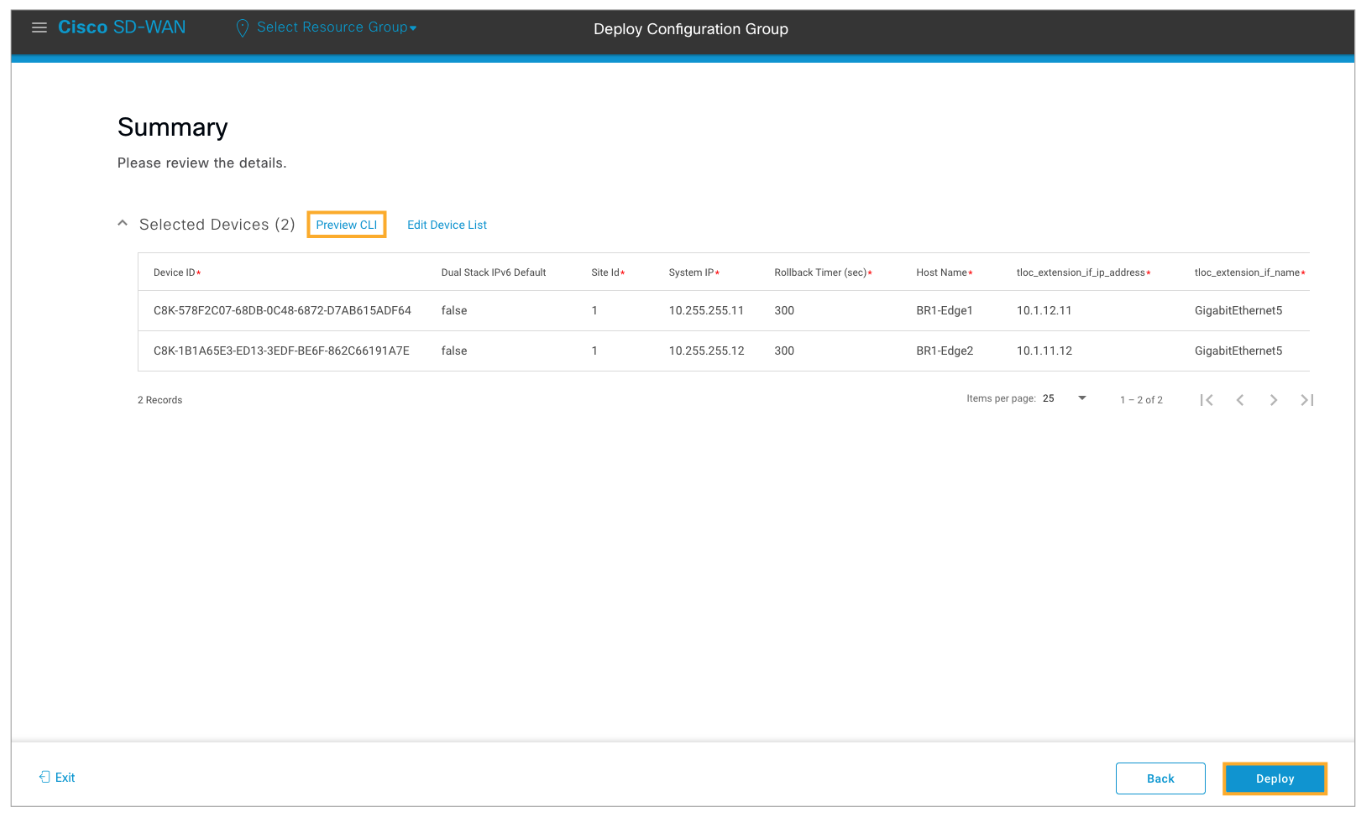
Use the Preview CLI link to review the candidate configuration. Verify each device to confirm that VRRP has been enabled for the GigabitEthernet4 interface in VPN 10. After reviewing, close the pop-up window and click Deploy to deploy the configuration changes.
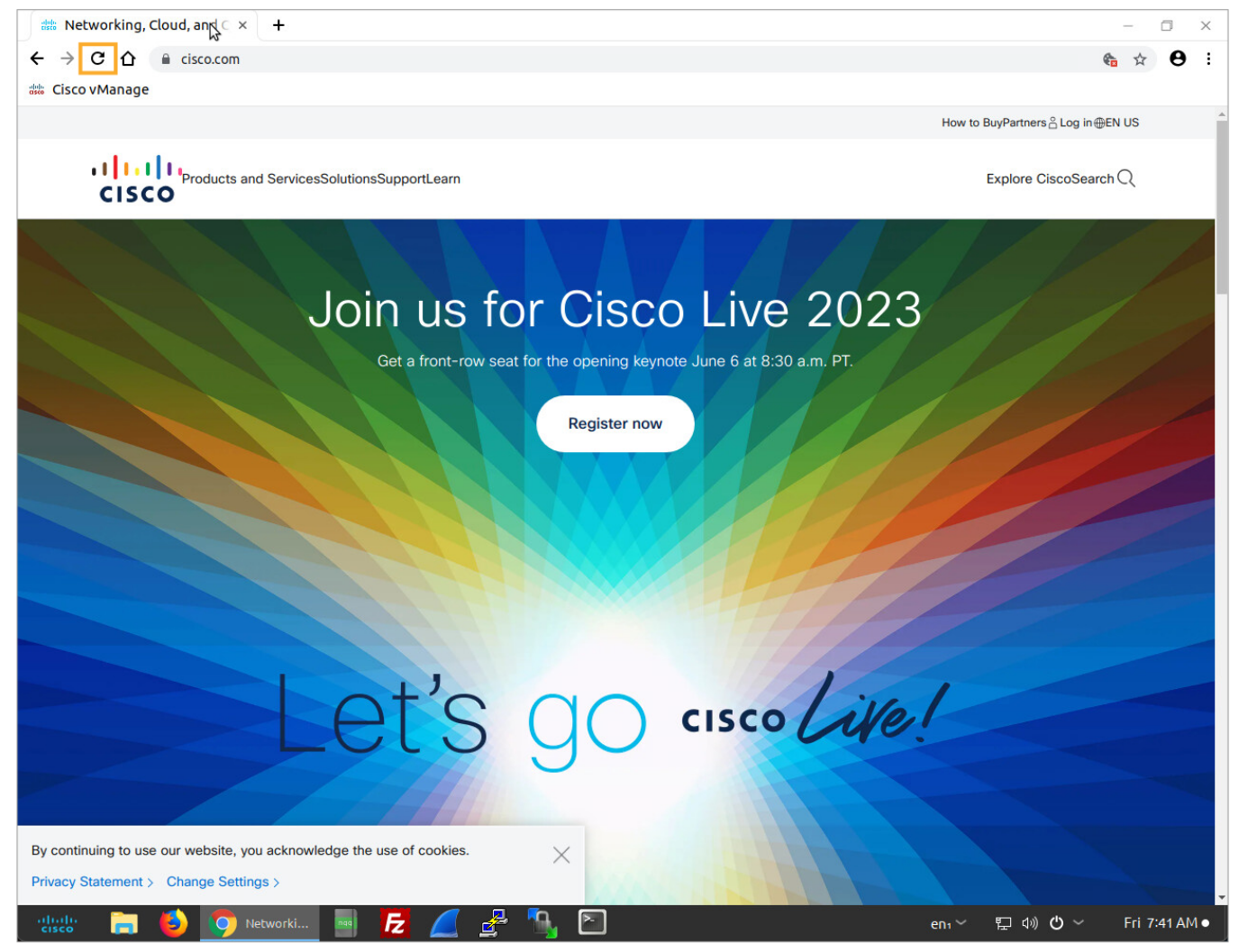
Try connecting to www.cisco.com from the BR1-PC once more. You should now have internet connectivity.
In the BR1-PC web browser hit the refresh button to retry the connection. You should successfully connect to cisco.com this time.
Implement Regional Breakout
In this task, you will use a combination of a centralized data policy and overlay routing to implement a regional internet breakout. The regional internet gateway will be enabled at the data center. The DC WAN Edge router will provide internet access to remote sites. In this scenario, it is assumed that the DC endpoints use a dedicated internet gateway.
Sites without internet connectivity or sites that have a local breakout but need a backup path to the internet can use the regional internet breakout in case the local internet connection fails. The DC WAN Edge router already advertises a default route to the remote branches. As part of this task, you will enable NAT on the WAN Edge routers internet interfaces and configure a data policy to route specific traffic (DNS, HTTP, and HTTPS) to the internet through VPN 0.

Comment
TABLE OF CONTENTS
- Onboarding & Provisioning Configuring Templates
- Authentication between vSmart & vBond
- Authentication between vSmart Controller
- Authentication between vBond & vEdge Router
- Authentication between vEdge Router & vManage NMS
- Authentication between vSmart Controller & vEdge Router
- Viptela Specific Port Terminology
- Deploy & Configure vManage & Generate Certificate
- Deploy & Configure vBond & Generate Certificate
- Deploy & Configure vSmart & Generate Certificate
- Configure vEdge & Generate Certificate
- SDWAN & NAT
- Secure DataPlane Bringup
- Enterprise CA for SDWAN Instances
- ZTP Process & PnP Overview
- Control Plane & Data Plane Operation - Unicast Routing Overview
- Configuring OMP & Its attributes
- Configure Unicast Overlay Routing
- Routing Configuration Example
- Segmentation Overview
- Configuring Segmentation
- Segmentation Configuration Example
- Data Traffic across Private WANs
- NAT in SDWAN & Data Encryption
- SD-WAN Viptela Policy Overview
- SD-WAN Centralized & Localized Control Policy Overview
- SD-WAN Centralized & Localized Data Policy
- Service Chaining
- Traffic Flow Monitoring
- vEdge Router as NAT Device
- Zone Based Firewalls
- Configure Centralized Control Policy
- Configuring Centralized Data Policy
- Configuring Cflowd Traffic Monitoring
- Configuring Zone based Firewall
- Service Chaining Configuration Example
- Configuring Service Side NAT
- Configuring Transport side NAT
- Control Policy Example 1: Hierarchical Topology
- Multi-Region Fabric
- Control Policy Example 2: Implementing Traffic Engineering
- Control Policy Example 2: Dynamic On-Demand Tunnels
- LAB Deploy Cisco SD-WAN Edge Routers
- LAB Deploy SDWAN Controllers
- LAB Deploy Cisco SD-WAN Devices Using Configuration Group
- LAB Implement Service-Side Routing Protocols
- LAB Implement TLOC Extensions
- LAB Implement Control Policies
- LAB Implement Data Policies
- LAB Implement Application-Aware Routing
- LAB Implement Branch and Regional Internet Breakouts
- LAB Migrate Branch Sites
RECENT POSTS
- Understanding Cisco ISE Authentication and Authorization Policies
- Installing Context-Aware Network Access Control using Cisco ISE Policies
- Designing Network Access Control that is Scalable using Cisco ISE Architecture
- Enterprise Network Access Control and Policy Enforcement using Cisco ISE
- Secure Device Administration and Network Access Using AAA Architecture
- Designing Enterprise-Class Hybrid Cloud Connectivity Using AWS Networking Services
- Exploring Core AWS Networking and Messaging Concepts for Modern Cloud Architectures
- Understanding Key AWS Services for Modern Cloud Architectures
- Building a Strong AWS Foundation with Amazon S3, EC2, and Virtual Private Cloud
- Understanding the ENSDWI Course: Advanced Cisco SD-WAN (Viptela) Concepts


LEAVE A COMMENT
Please login here to comment.