
EMAIL SUPPORT
dclessons@dclessons.comLOCATION
USLAB Implement Data Policies
Task :
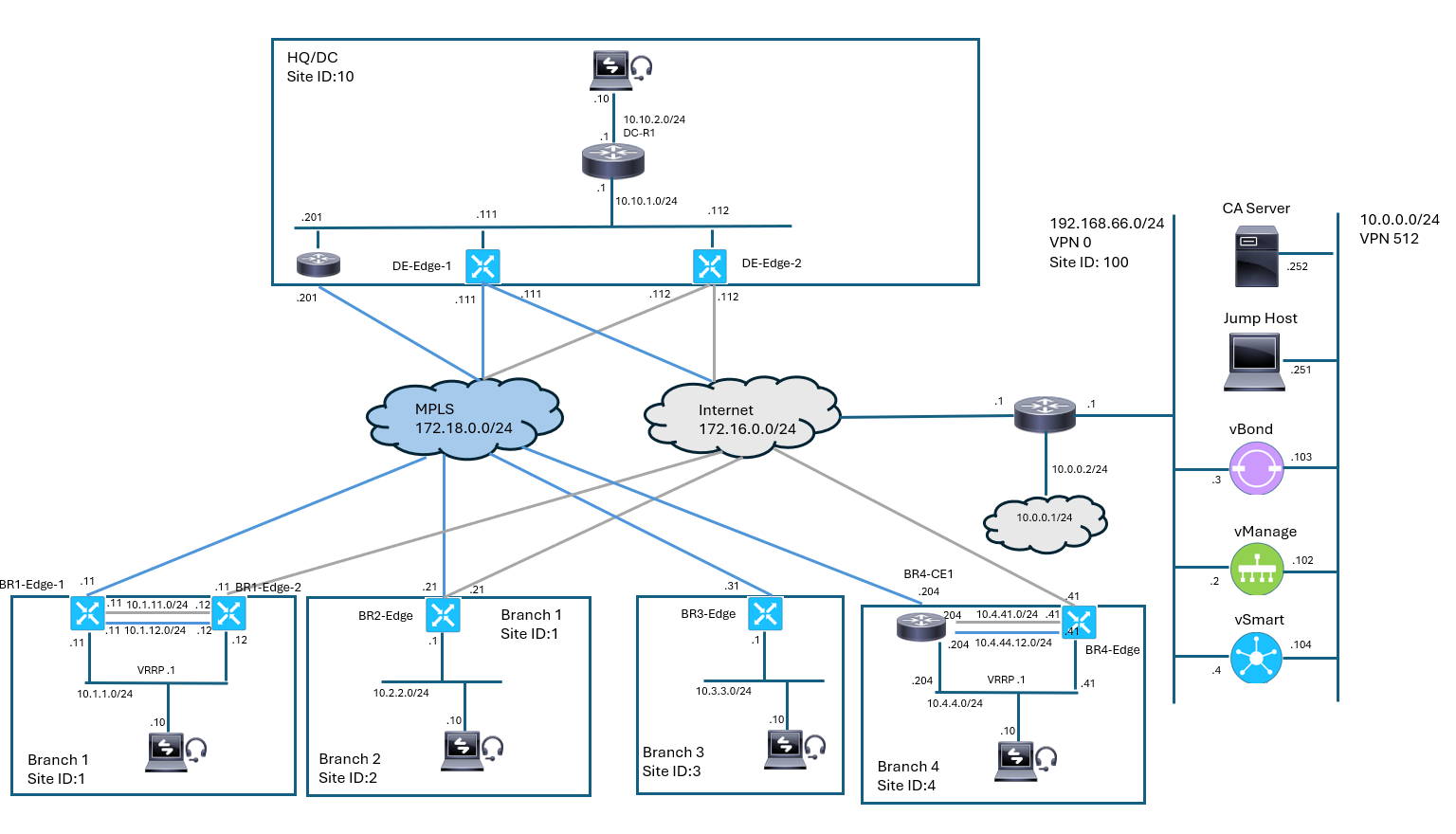
You will deploy custom traffic engineering, by using data policies for Branches 1 and 2. You will define a policy to prefer the mpls transport for corporate traffic while other traffic can use all available transports. The task is implemented with the use of a centralized data policy.
The policy should implement the following:
-
Match traffic that is sourced from the Branch1 and 2 VPN 10 networks.
-
Match traffic that is destined to the DC VPN 10 networks.
-
Apply a policy to steer the traffic over the
mplstransport.
Topology:
 Solution:
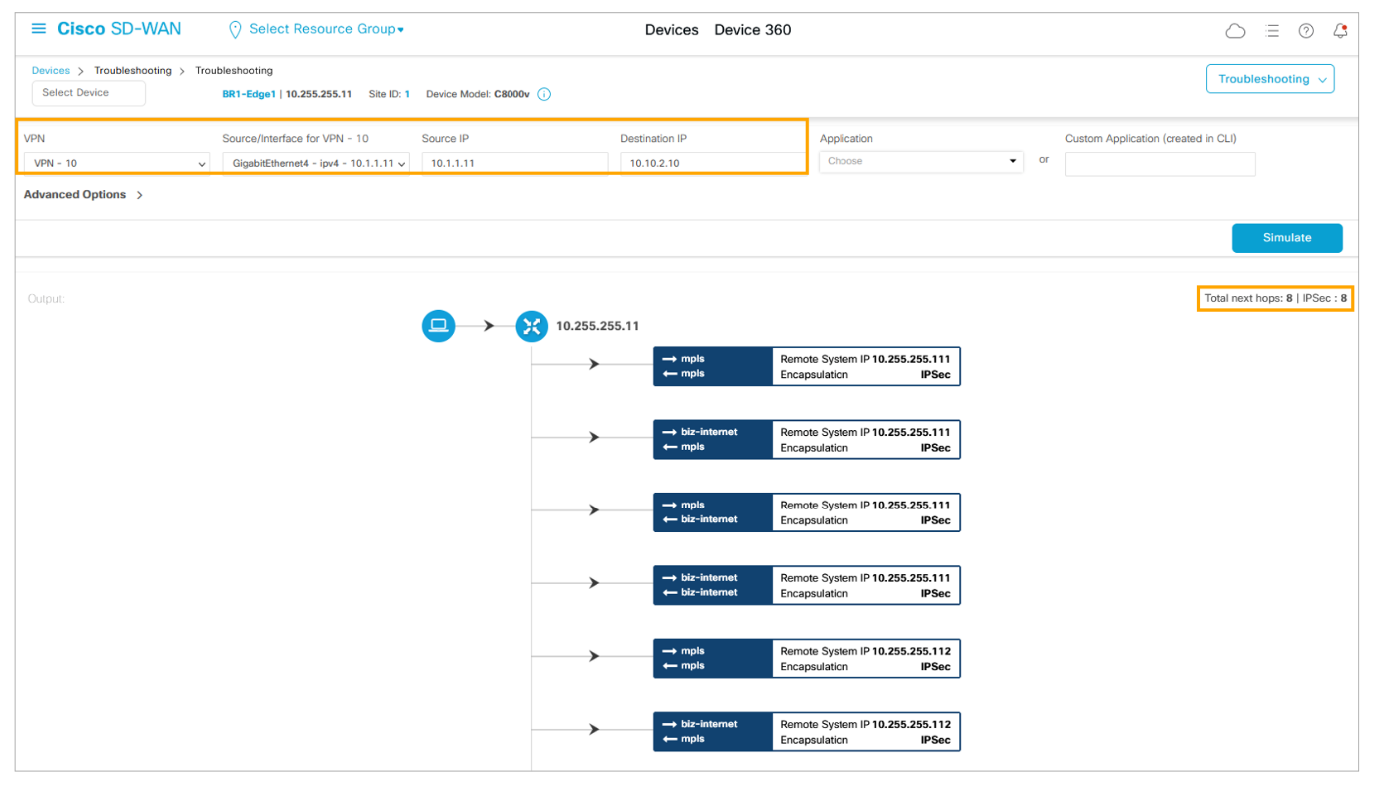
From the Cisco vManage main menu, navigate to Monitor > Devices. Choose the BR1-Edge1 WAN Edge, scroll down in the left pane, open the Troubleshooting tools, and start the Simulate Flows tool.
Simulate a flow from VPN 10, GigabitEthernet4 (10.1.1.11), to the DC-PC (10.10.2.10). All the available transport that is being used for the flows is displayed.
Choose the following parameters, and click Simulate:
-
VPN: 10
-
Source Interface: GigabitEthernet4 – ipv4 – 10.1.1.11
-
Destination IP: 10.10.2.10
Scroll down to see all the results. All the available transport that is being used for the flows is displayed. BR1-Edge1 has a total of eight tunnels—four tunnels to each remote WAN Edge device at the data center across both transports.
In vManage, navigate to Configuration > Policies and edit the Branch1 template. From the vManage main menu, navigate to Configuration > Policies.
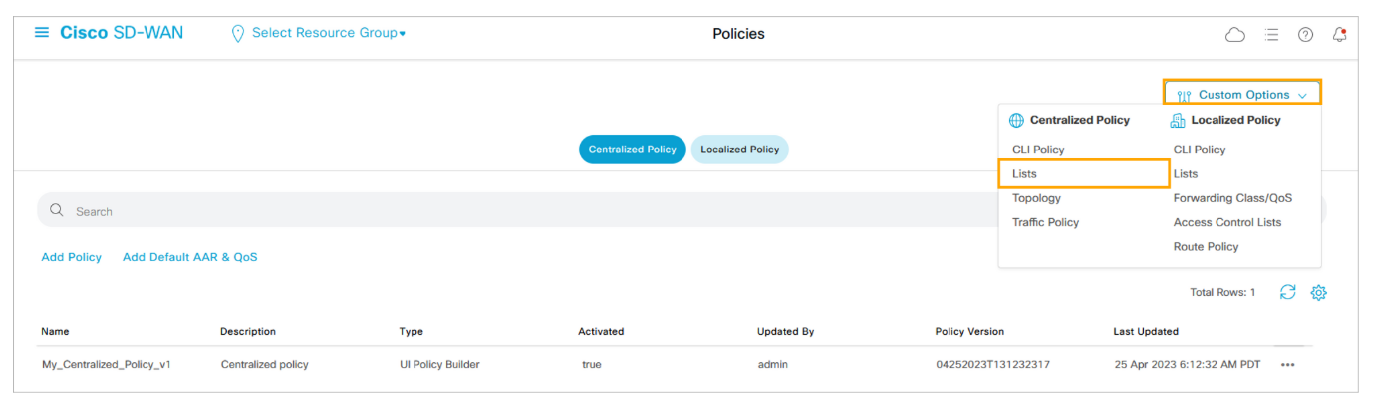
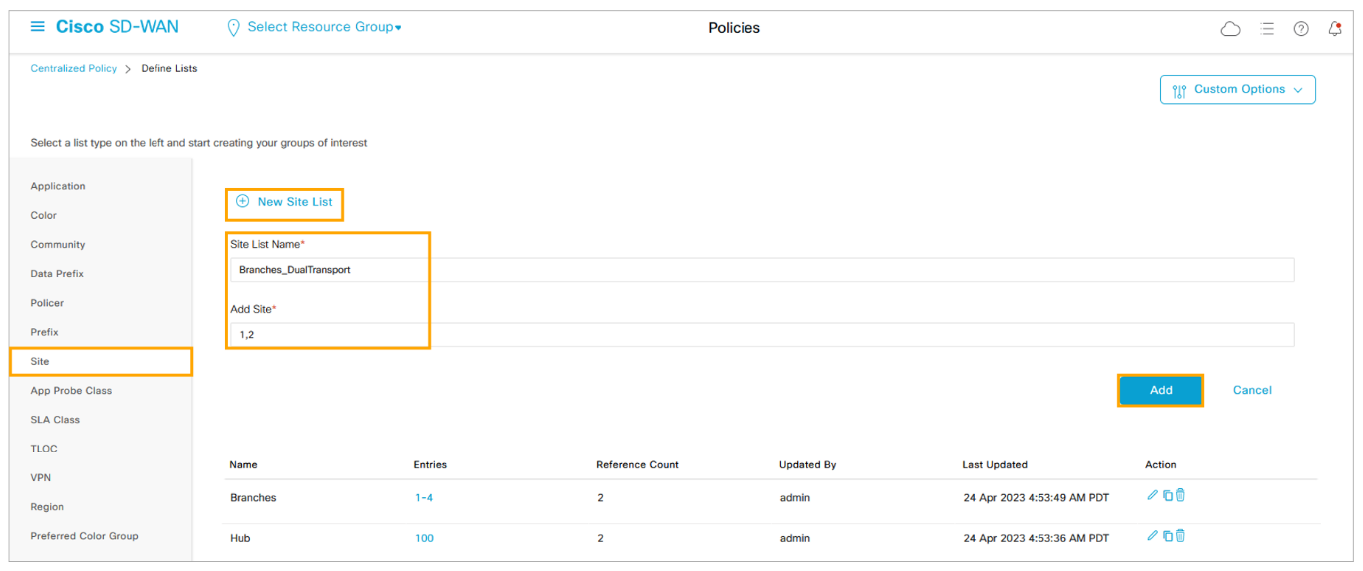
Create a site list from the dual transport branches (Branches 1 and 2).
From the Custom Options menu in the top-right corner, choose Lists under the Centralized Policy heading.
Create the site list as follows:
-
Site List Name: Branches_DualTransport
-
Add Site: 1,2
Click Add to create the site list.
Create two data prefix lists. The first list should include the IPv4 prefixes from Branch 1 (10.1.1.0/24) and Branch 2 (10.2.2.0/24). The second list should include the IPv4 prefix from the data center where the DC-PC is located (10.10.2.0/24).
From the left pane, choose Data Prefix. Click (+) New Data Prefix List and create the first list as follows:
-
Data Prefix List Name: Branches_DualTransport_VPN10
-
Add Data Prefix: 10.1.1.0/24, 10.2.2.0/24
Click Add to create the data prefix list.
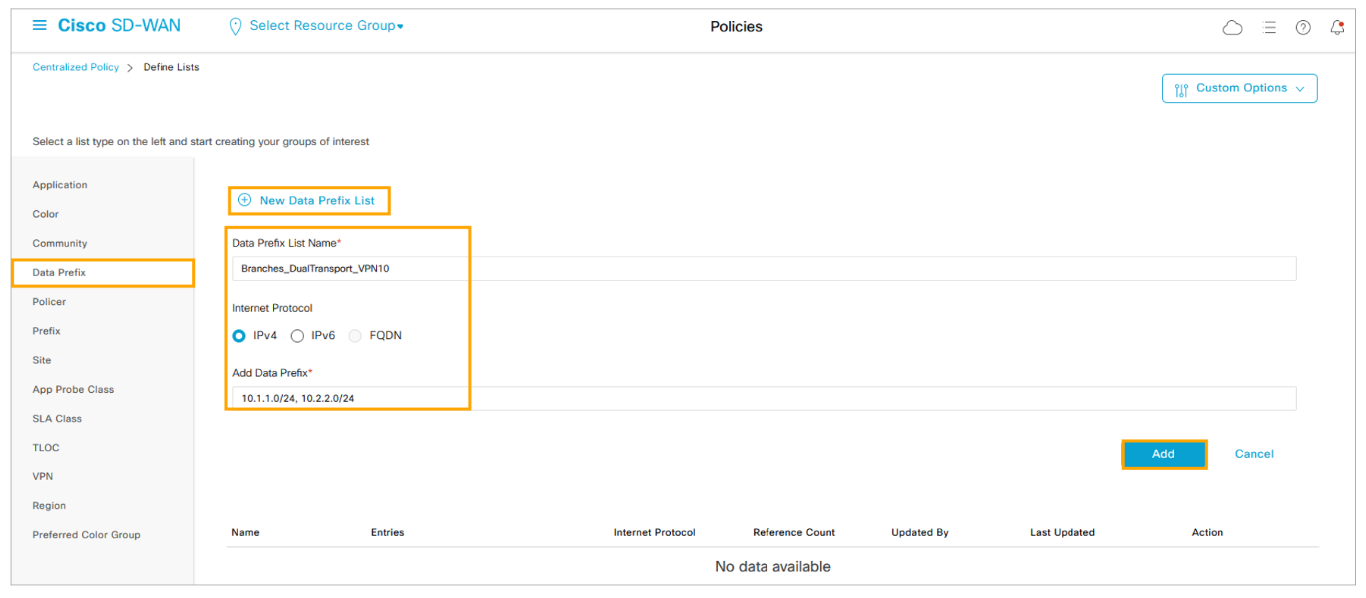
Click (+) New Data Prefix List again and create the second list as follows:
-
Data Prefix List Name: DC_VPN10_Endpoints
-
Add Data Prefix: 10.10.2.0/24
Click Add to create the data prefix list.
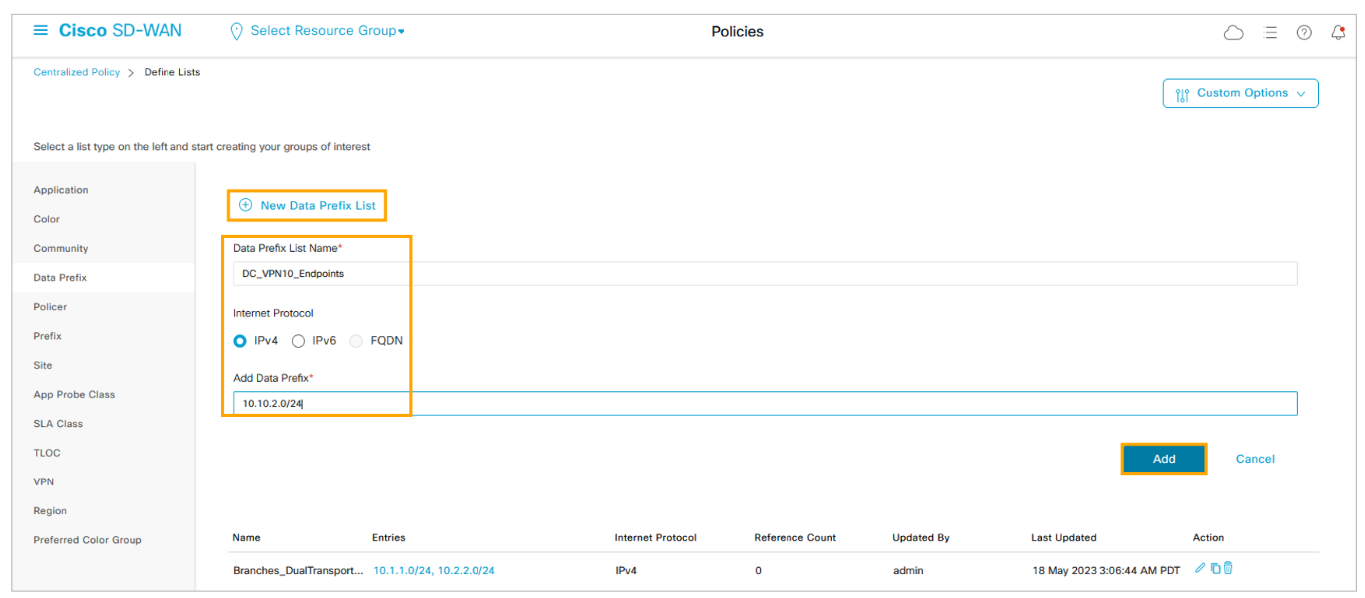
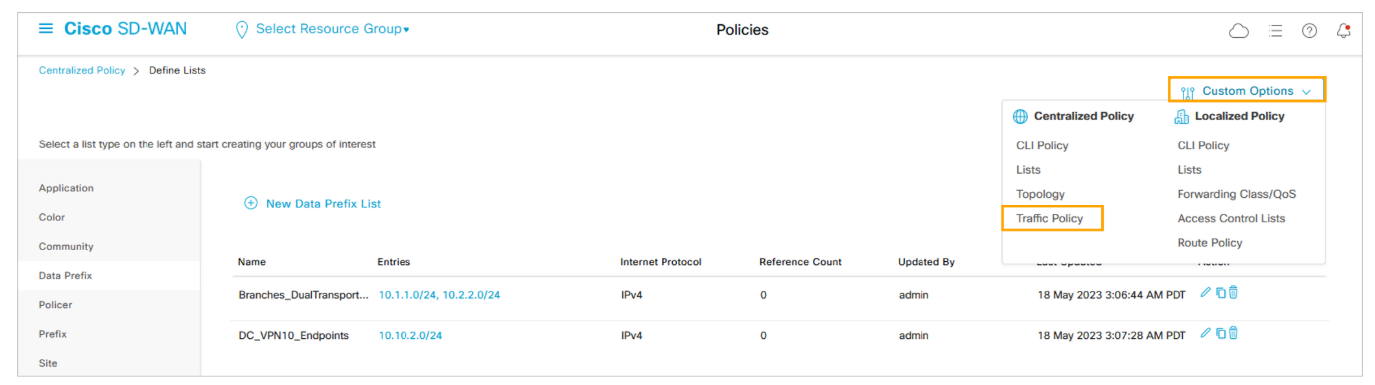
Create a new centralized data policy to configure traffic engineering.From the Custom Options menu, choose Traffic Policy under the Centralized Policy heading.
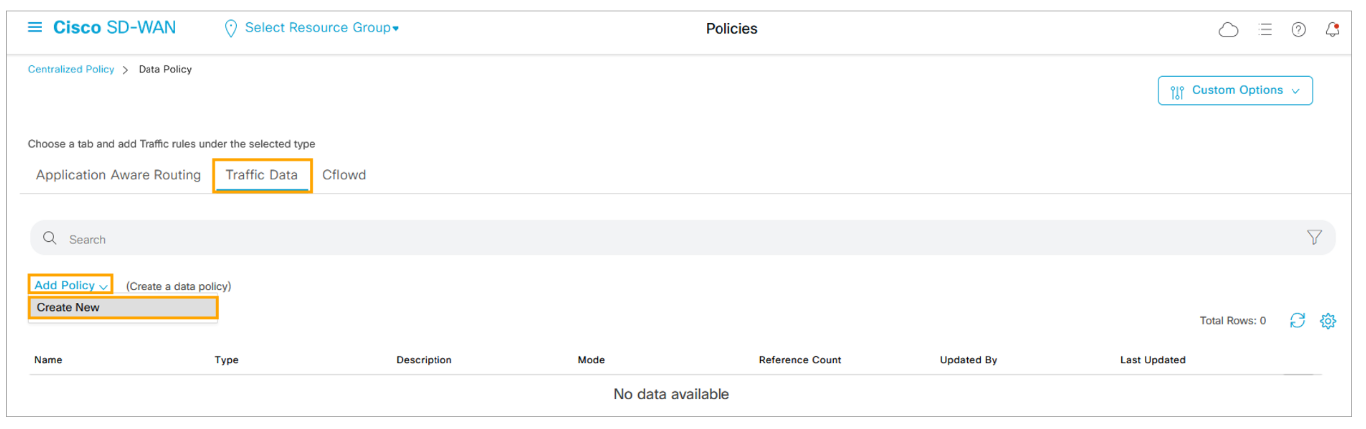
Click the Traffic Data tab, click Add Policy, and then click Create New to create a new data policy.
Type Branches_DualTransport_TrafficEngineering_v1 in the Name field, and type Dual transport branches – traffic engineering policy in the Description field.

Comment
TABLE OF CONTENTS
- Onboarding & Provisioning Configuring Templates
- Authentication between vSmart & vBond
- Authentication between vSmart Controller
- Authentication between vBond & vEdge Router
- Authentication between vEdge Router & vManage NMS
- Authentication between vSmart Controller & vEdge Router
- Viptela Specific Port Terminology
- Deploy & Configure vManage & Generate Certificate
- Deploy & Configure vBond & Generate Certificate
- Deploy & Configure vSmart & Generate Certificate
- Configure vEdge & Generate Certificate
- SDWAN & NAT
- Secure DataPlane Bringup
- Enterprise CA for SDWAN Instances
- ZTP Process & PnP Overview
- Control Plane & Data Plane Operation - Unicast Routing Overview
- Configuring OMP & Its attributes
- Configure Unicast Overlay Routing
- Routing Configuration Example
- Segmentation Overview
- Configuring Segmentation
- Segmentation Configuration Example
- Data Traffic across Private WANs
- NAT in SDWAN & Data Encryption
- SD-WAN Viptela Policy Overview
- SD-WAN Centralized & Localized Control Policy Overview
- SD-WAN Centralized & Localized Data Policy
- Service Chaining
- Traffic Flow Monitoring
- vEdge Router as NAT Device
- Zone Based Firewalls
- Configure Centralized Control Policy
- Configuring Centralized Data Policy
- Configuring Cflowd Traffic Monitoring
- Configuring Zone based Firewall
- Service Chaining Configuration Example
- Configuring Service Side NAT
- Configuring Transport side NAT
- Control Policy Example 1: Hierarchical Topology
- Multi-Region Fabric
- Control Policy Example 2: Implementing Traffic Engineering
- Control Policy Example 2: Dynamic On-Demand Tunnels
- LAB Deploy Cisco SD-WAN Edge Routers
- LAB Deploy SDWAN Controllers
- LAB Deploy Cisco SD-WAN Devices Using Configuration Group
- LAB Implement Service-Side Routing Protocols
- LAB Implement TLOC Extensions
- LAB Implement Control Policies
- LAB Implement Data Policies
- LAB Implement Application-Aware Routing
- LAB Implement Branch and Regional Internet Breakouts
- LAB Migrate Branch Sites
RECENT POSTS
- Understanding Cisco ISE Authentication and Authorization Policies
- Installing Context-Aware Network Access Control using Cisco ISE Policies
- Designing Network Access Control that is Scalable using Cisco ISE Architecture
- Enterprise Network Access Control and Policy Enforcement using Cisco ISE
- Secure Device Administration and Network Access Using AAA Architecture
- Designing Enterprise-Class Hybrid Cloud Connectivity Using AWS Networking Services
- Exploring Core AWS Networking and Messaging Concepts for Modern Cloud Architectures
- Understanding Key AWS Services for Modern Cloud Architectures
- Building a Strong AWS Foundation with Amazon S3, EC2, and Virtual Private Cloud
- Understanding the ENSDWI Course: Advanced Cisco SD-WAN (Viptela) Concepts


LEAVE A COMMENT
Please login here to comment.